
Publishing an Experience
Make an Experience available in your app.
Publish an Experience to make it available in your app. You can put a new onboarding flow or paywall in front of customers as soon as it’s ready, or schedule it for a later date. Once your app is integrated, these changes don’t need another app release.
Publishing saves a version of the Experience. You can carry on editing the draft afterward; customers keep receiving the published version until you publish again.
Publish a version
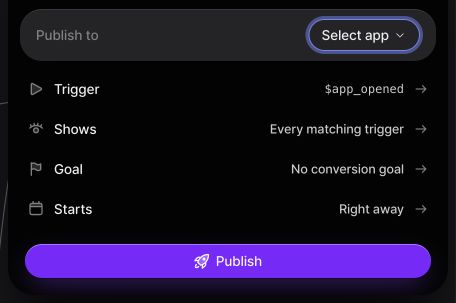
Choose your app
Open the Experience, select Publish, and choose the app that should deliver it.
Set delivery and measurement
Trigger is the event or condition that starts a Journey. Shows describes the audience and how often customers can enter. Goal is the optional outcome you want to measure, along with the time allowed for it to happen. Click a row to change that setting. Learn more about triggers and goals.
Publish the version
Choose a start time, then select Publish. If something still needs to be configured, such as a missing trigger or an incomplete path, the panel explains what to fix before you can continue.
Schedule delivery
Start time
For a new Experience, click Starts. Choose As soon as it’s published to make it available when the build is ready, or At a time I pick to enter a start time.
A scheduled Experience is built straight away. Nuxie waits until your chosen time before making it available, so you can prepare a launch ahead of time. Customers still need to match the audience and trigger before it appears.
End time
Click Set an end to stop showing the Experience at a particular time. This is useful for a limited-time offer or a survey you only want to run for a week. Choose No end to keep it available until you pause it.
Publish status
The panel moves through Queued, Publishing, and Published as Nuxie prepares the version. When it reaches Published, the Experience is available according to its schedule.
If you’re updating an existing Experience, the live version continues running while the new one builds. A failed build leaves that version in place. Open the error details, fix the Experience, then select Retry or publish the corrected changes.
Open Experience takes you to the published Experience’s details, where you can browse versions, Journeys, responses, and Experiments.
Pause and resume
Click Pause in the publish panel to stop new delivery. You can return at any time and select Resume to make the published Experience available again. Its draft and published history stay in place.
If you only want to pause a test within the Experience, use the Experiment’s Pause control. That sends new arrivals through the control variant while the Experience continues running.
Connect your app
After publishing, open Connect your app to get the app key and trigger. You can copy setup instructions for your coding agent or follow the manual integration. Each platform’s installation steps are in its SDK guide.
The panel shows Connected when the SDK reaches Nuxie and Shown when the app presents the published Experience. Testing in your app walks through that first run. When you’re ready to change it, see Versions and updates.